Activity Announcement Templates let your group store frequently used announcements, including arrival instructions or registration reminders. This ensures consistency and saves time when communicating with participants. Once created, templates can be reused and sent with a single click.
Activity Announcement vs. Group-Level Announcement
Group-level announcements: Sent from the Group Dashboard to all players across events, programs, leagues, and tournaments.
Activity announcements: Sent from a specific league or tournament dashboard to only the players registered in that activity.
Where to locate Activity Announcement Templates
- Go to your Group Dashboard > Settings.
- Click Activity Announcement Templates.

- If you have any saved templates, you’ll see a list that includes:
- Title (internal name)
- Subject (visible to players)
- Created date
- Created By
- Last Modified
- Last Modified By

Create a new template
- Click Create Activity Announcement Template.
- Create a Title for internal use, this will not be visible to players.
- Create a Subject, which will appear as the announcement heading for players.
- Write your Message in the text editor.
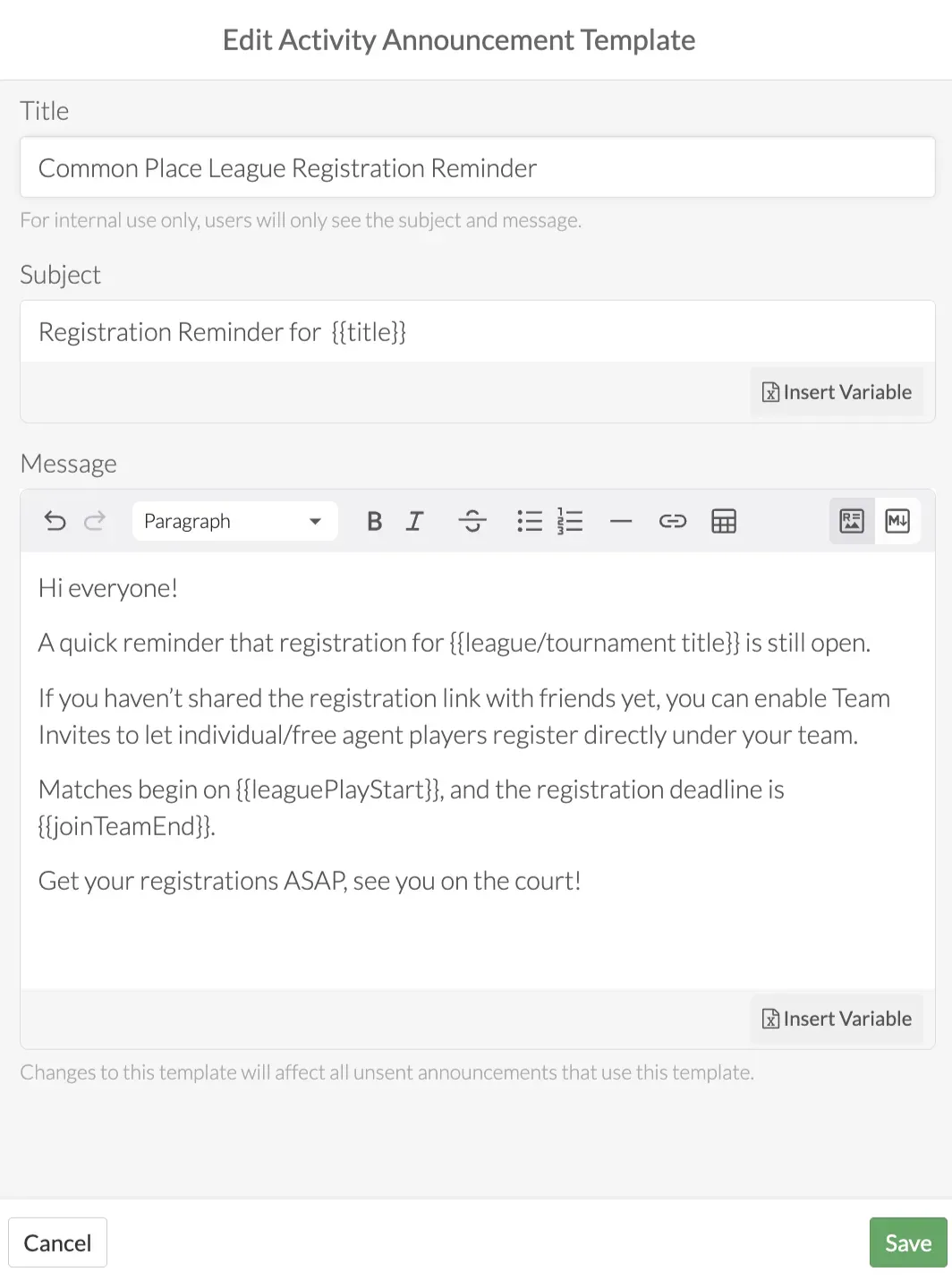
- (Optional) Insert Variable to subject or message to automatically personalize league/tournament details.
Variable: Inputting a variable means inserting a placeholder into your subject line or message that automatically fills in specific league or tournament details. Using variables ensures accuracy and saves time when sending announcements.
- League/Tournament Title
- Registration Start
- Registration End
- Join Team Deadline
- Match Start
- Match End
- Click Save Template.
Once saved, your template will appear in your list of templates and can be selected any time you send an announcement for a league or tournament.
Send a league/tournament announcement
Announcements can be created using an activity announcement saved template or written as a custom message.
- Locate League/Tournament Dashboard > Announcements
- Click Create Announcement
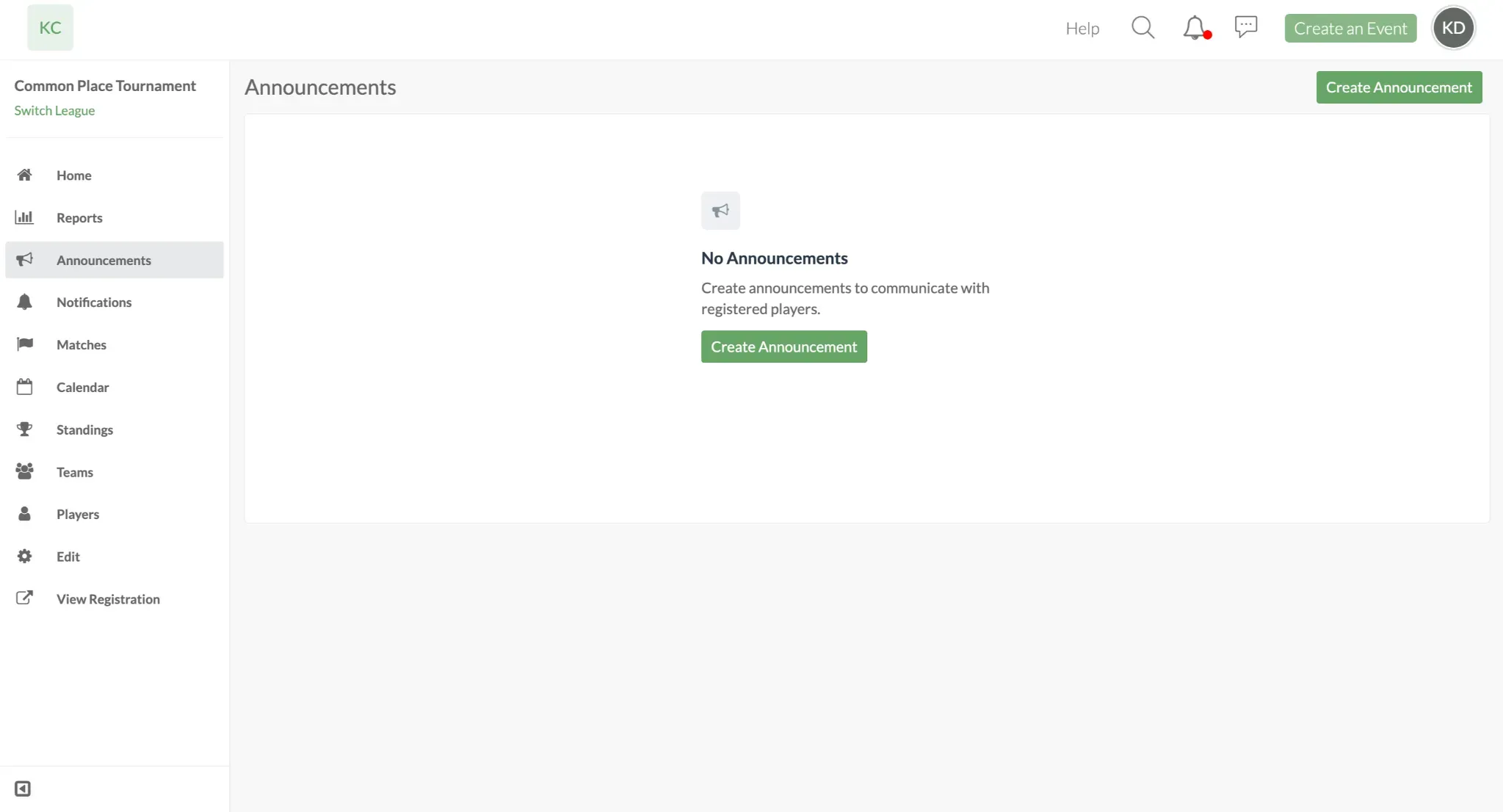
- Under Content, you can choose between two options:
Option 1 - Custom Subject/Message: Create a custom, one time announcement
- (Optional) Use the Start from Activity Announcement Template dropdown menu, to select an existing template to curate your custom message
Option 2 - Select Activity Announcement Template: Select a pre-existing template for your announcement
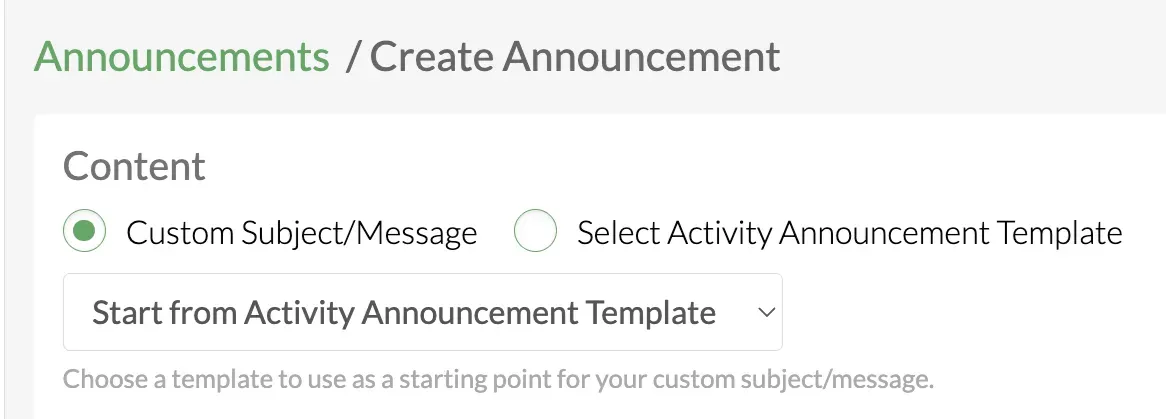
Option 1: Create Custom Subject/Message
- Select Custom Subject/Message.
- Enter your custom Subject and Message.
- (Optional) Insert Variables to automatically pull in league or tournament details so your announcements remain accurate and personalized.
Option 2: Select Activity Announcement Template
- Select Activity Announcement Template.
- Use the dropdown to choose a saved template and preview or edit it if needed.
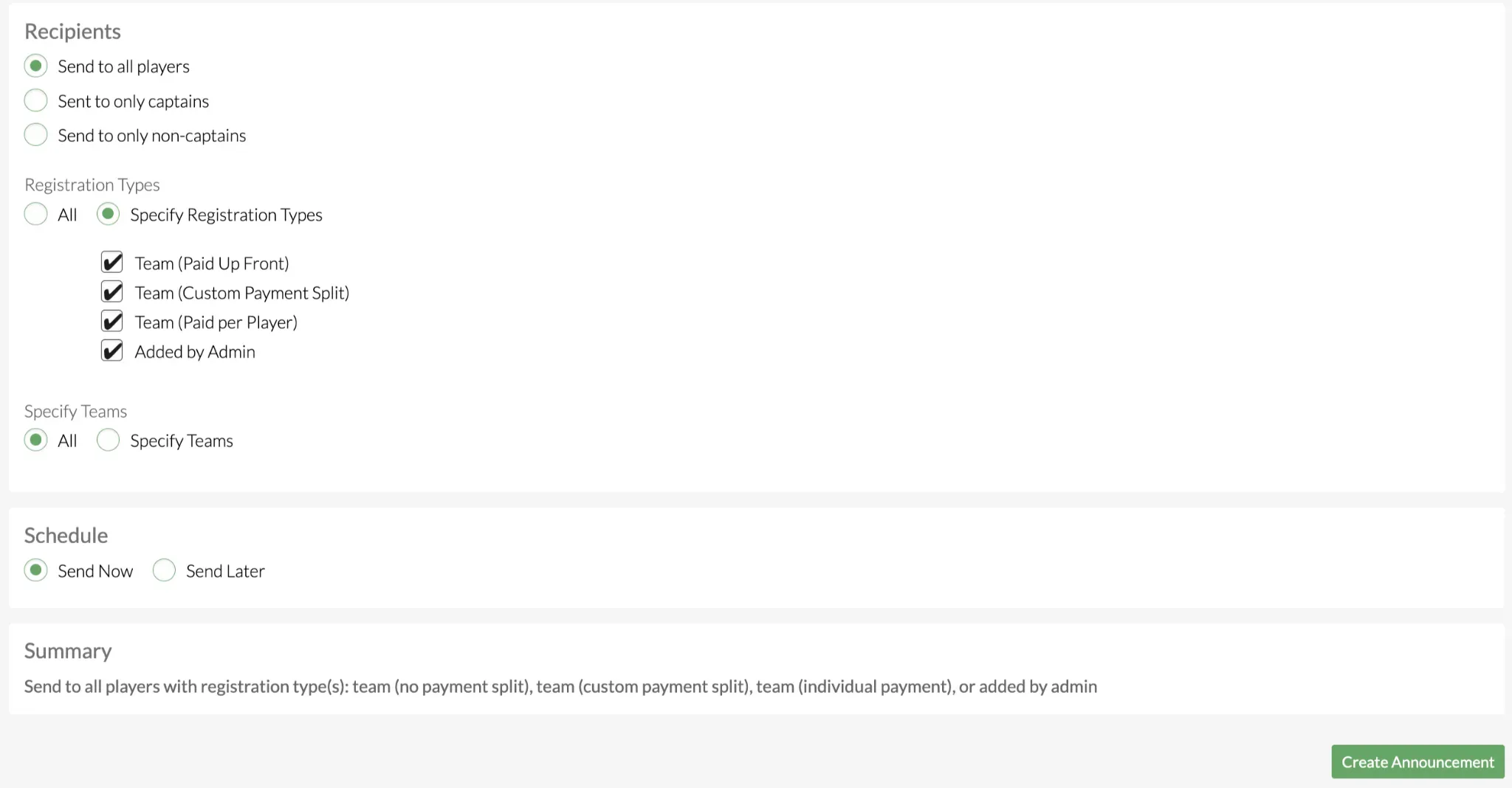
Recipients
Under both options locate Recipients and customize who should receive the announcement:
- Send to all players: Players and Captains
- Send to only captains: Only Captains of teams
- Captains are marked with a star in the Is Captain column of the player list.
- Send to only non-captains: Only players who are not captains
Registration Types
All
Specific Registration Types:
- Team (Paid Upfront): Team registration with upfront payment
- Team (Per Player): Team registration, with fees charged on a per-player basis
- Team (Custom): Team registration with a custom fee split, charged to each player individually. Added by Admins: Team registrations that were added by group admin
Note: Only the registration types you create will be available for selection. Any registration type that hasn’t been set up will not appear.
Scheduling
- Send Now
- Send Later, enter date and time.
- Review Summary and click Create Announcement
How to edit or delete a template
Within the League/Tournament Announcements, you can view your existing templates, but the steps to edit or delete a template are handled separately. To make changes, you’ll need to open the template from its dedicated settings page, where you can update the content or remove it entirely.
- Locate Group Dashboard > Settings > Activity Announcement Templates
- Click on the three dots to the right of a template to view Edit and Remove.

- Select Edit or Remove
- After editing, click Save
- If removing, confirm by clicking Yes
Note : Once a template is removed it will not be available as a template in league/tournament announcements. Existing announcements that used this template will not be removed.
How to view pending, scheduled, and sent announcements
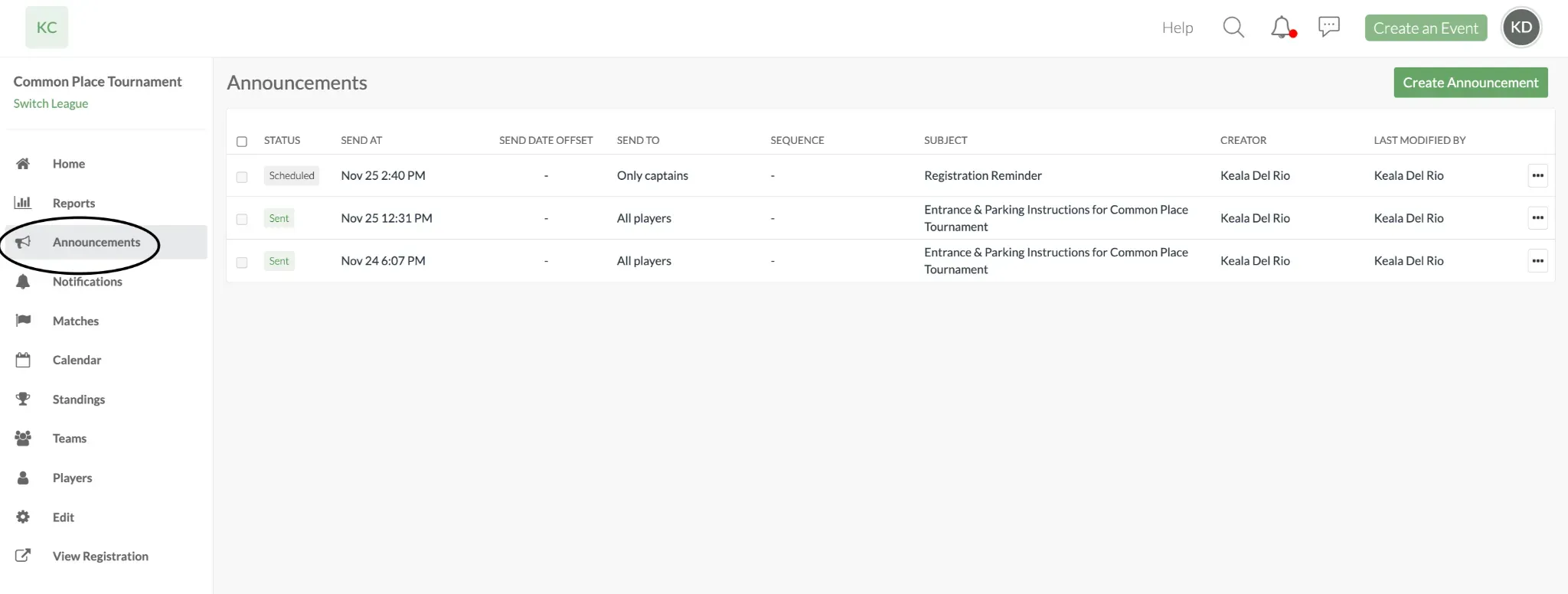
Once announcements have been created or scheduled, you can view them from the Announcements section in the league/tournament dashboard.
- Go to your League/Tournament Dashboard
- Click Announcements
- Here, you can see all announcements associated with that league or tournament, including:
- Status (Sent, Sending, Scheduled, Failed)
- Send At date and time
- Send Date Offset (for scheduled sequences)
- Send To (all players, captains only, etc.)
- Sequence (if part of a scheduled series)
- Sequence: Indicates if the announcement is part of a scheduled series.
- Subject
- Creator
- Last Modified
This view helps admins track outgoing communications, confirm that templates were applied correctly, and ensure that messages were successfully delivered.
Tips and Template Example
- Keep templates neutral and re-usable.
- Variables allow the system to insert details like the League/Tournament Title, Match Start, or Match End, making your announcements feel personalized and accurate without needing manual edits.
- Build templates for situations you communicate frequently, such as arrival instructions, parking details, rainouts, or registration reminders, so you can send polished announcements quickly.
Example Template
Title: Common Place League Registration Reminder
Subject: Registration Reminder
Message:
Hi everyone! A quick reminder that registration for {{league/tournament title}} closes on {{joinTeamEnd}}.
If you haven’t shared the registration link with friends yet, be sure to get them registered by the deadline.
Matches begin on {{leaguePlayStart}} and we’re excited to see you on the court!
By setting up reusable templates and using variables to personalize announcements, you can streamline communication and ensure consistent messaging across your leagues and tournaments.
FAQ
1. Can I edit a template after it has been used in an announcement? Yes. Editing a template affects only future announcements. Announcements already sent using the original template will not change.
** 2. What happens if I delete a template?**
Deleting a template removes it from your template list, but it does not delete or change any announcements that were previously sent.
** 3. Are templates shared across all admins in the group?**
Group Admins can create, edit, and manage all Activity Announcement Templates from the group’s settings. League/Tournament Managers cannot edit the templates, but they can access them when sending announcements within their assigned leagues or tournaments, and they can create custom announcements as needed.
4. Can I duplicate an existing template?
While there is no direct “duplicate” button, you can simply open a template, copy its content, and create a new template using that information.
5. Why don’t I see the option to choose a template when creating a group-level announcement?
Activity Announcement Templates are only available for league and tournament announcements
6. Will templates update automatically if league/tournament dates change?
If you use variables (e.g., Match Start, Registration End), the inserted values will update to reflect the latest information. Updates will apply to any announcements that are scheduled or pending, but announcements that have already been sent will not display the new information.
7. Do players get announcements via email, push notifications, or both?
Announcements are sent to players either as push notification or email. Delivery depends on each user’s notification settings.
8.Can I update a scheduled announcement?
Yes, you can edit a scheduled announcement at any time before it sends, and any changes you make will appear in the final announcement that players receive. Once the announcement has been sent, it can no longer be edited.
Questions? Send them our way: support@opensports.net